In short: Happ is a free client app, and on its own it does not give you a protected connection. To make Happ work you need to add a subscription from a service — a link or a QR code issued by your connection provider. The setup is simple: install the app, add the subscription, press the connect button. With Tainet the whole path from signing up to a working connection takes about 30 seconds: the app links for your device and a step-by-step guide appear the moment you start the free trial — in the Telegram bot or in your account on this site. Below is a detailed walkthrough for each platform and a fix for the common problems; it also shows what other devices the connection runs on besides your phone.
What Happ is and what a Happ subscription is: why the screen is empty after install
The most common question from newcomers is: “I downloaded Happ — now what?” The thing is, Happ (its full name in the stores is Happ Proxy Utility) is a client, not a service. It is a shell that establishes a connection over modern protocols such as VLESS, but it has no servers of its own. The servers come with the subscription, and that is issued by the service you connect to - what a VPN key is, and why key, config and subscription mean the same thing, is covered separately. With Tainet it appears the moment you sign up — both in the Telegram bot and in your account, together with the app links for your device and the setup guide.
The app is available on iOS, Android, Windows, macOS, Linux and Android TV, it is free, and on Google Play it has more than 17 million installs. A nice touch: split routing works out of the box, so you can decide which traffic goes through the protected connection and which goes directly, instead of pushing the whole internet through the tunnel.
How to set up Happ on iPhone and iPad
🔴 First, the important bit about iPhone. As of 13 September 2026 the Russian App Store carries an official app of the family - Happ Lite by the developer Flyfrog LLC: install that one, and the steps below apply in full. The Happ family has been removed from the store and returned before - if Lite is unavailable again by the time you read this, on iPhone you can use INCY (free) and Shadowrocket (249 roubles): how to set up INCY on an iPhone is a separate guide: the subscription is the same, the link is one, the app is up to you. ⚠️ On Android there is no such restriction.
-
Install “Happ Proxy Utility” from the App Store. With a Tainet subscription you don’t have to search for it by hand: a direct link for your device sits in the setup guide in your account.
-
Copy the subscription link — from the Telegram bot or from your account, with a single tap.
-
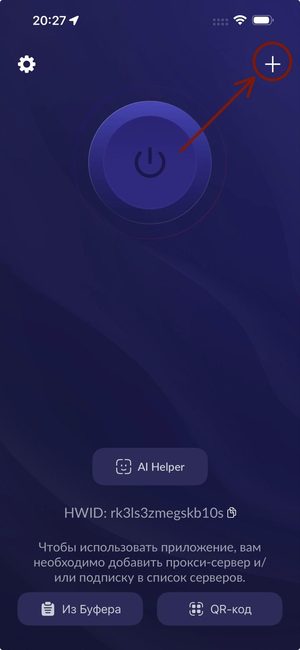
Open Happ and tap ”+” in the top right corner.
-
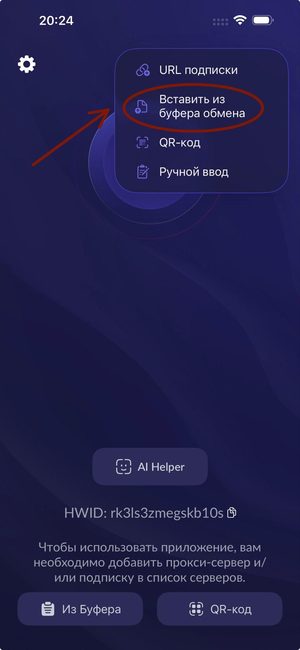
In the menu that opens, choose “Paste from clipboard”. The subscription appears in the list along with its servers.
-
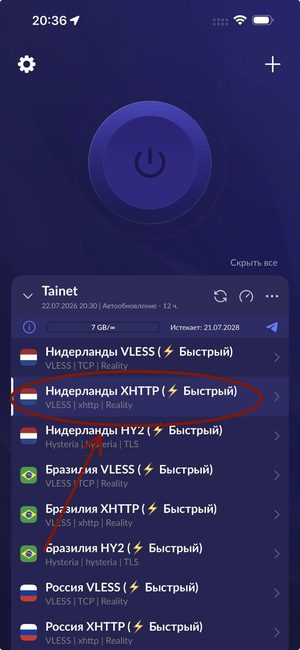
Pick the server with the lowest ping and press the large round connect button.
-
iOS will ask permission to add a VPN configuration — confirm it. This is a system prompt and it appears only once.
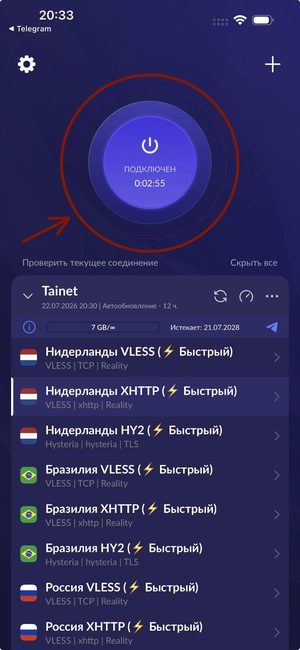
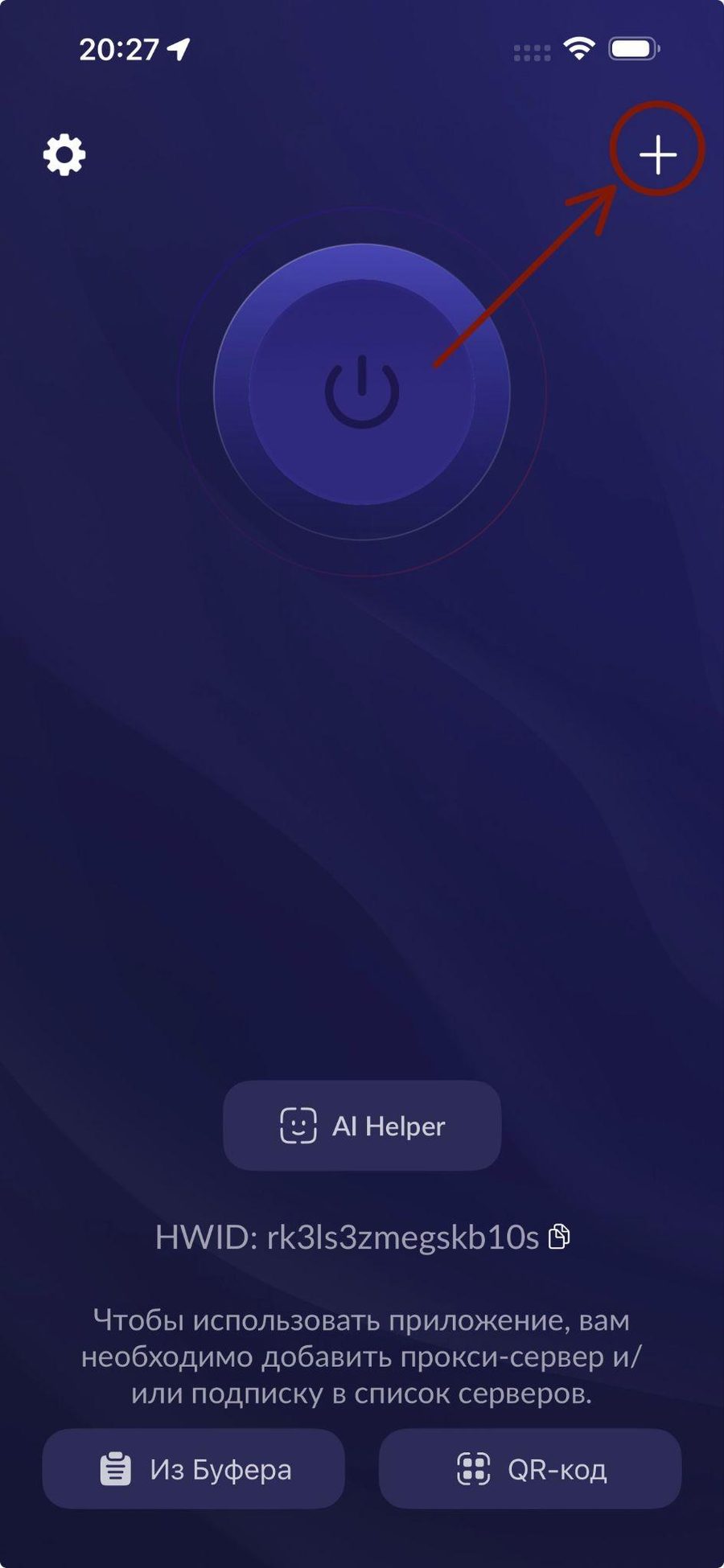
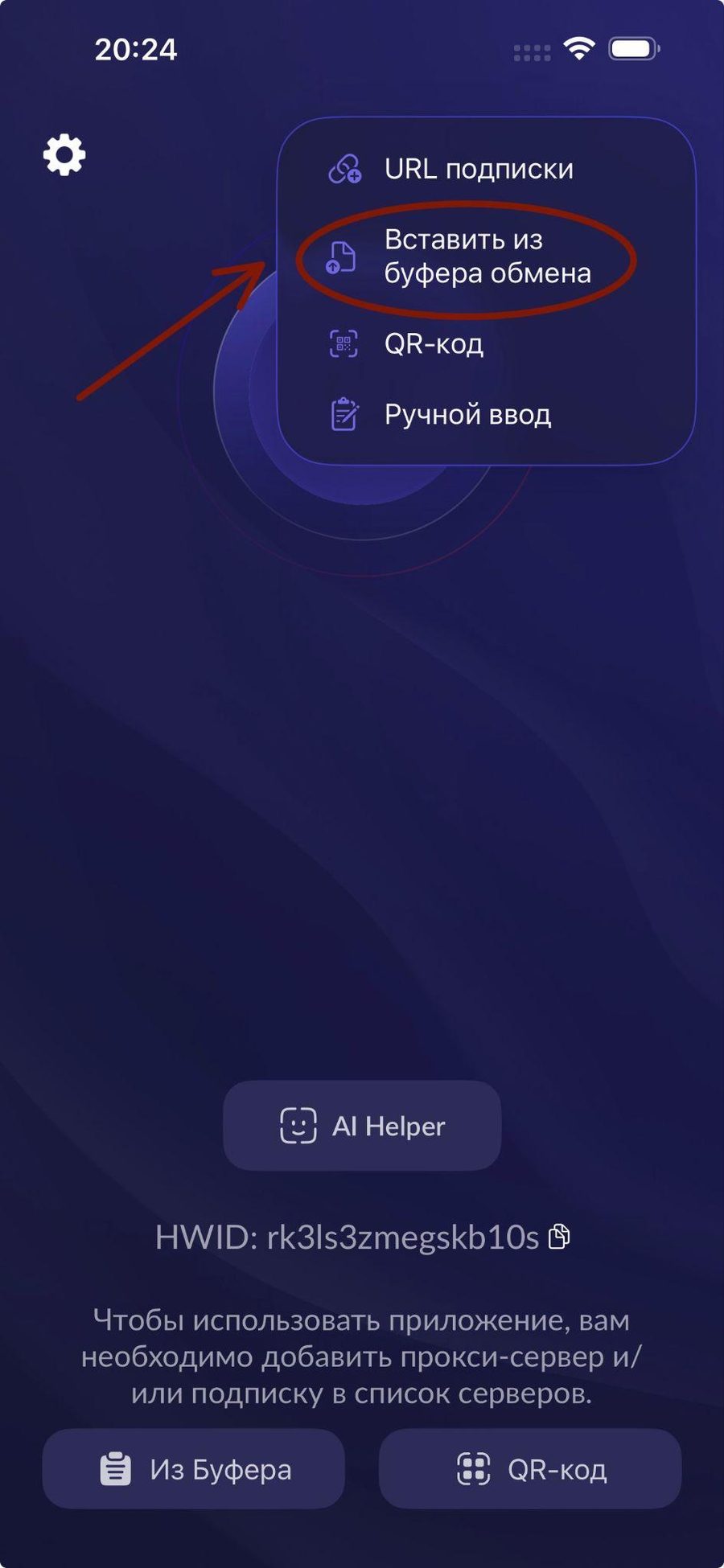
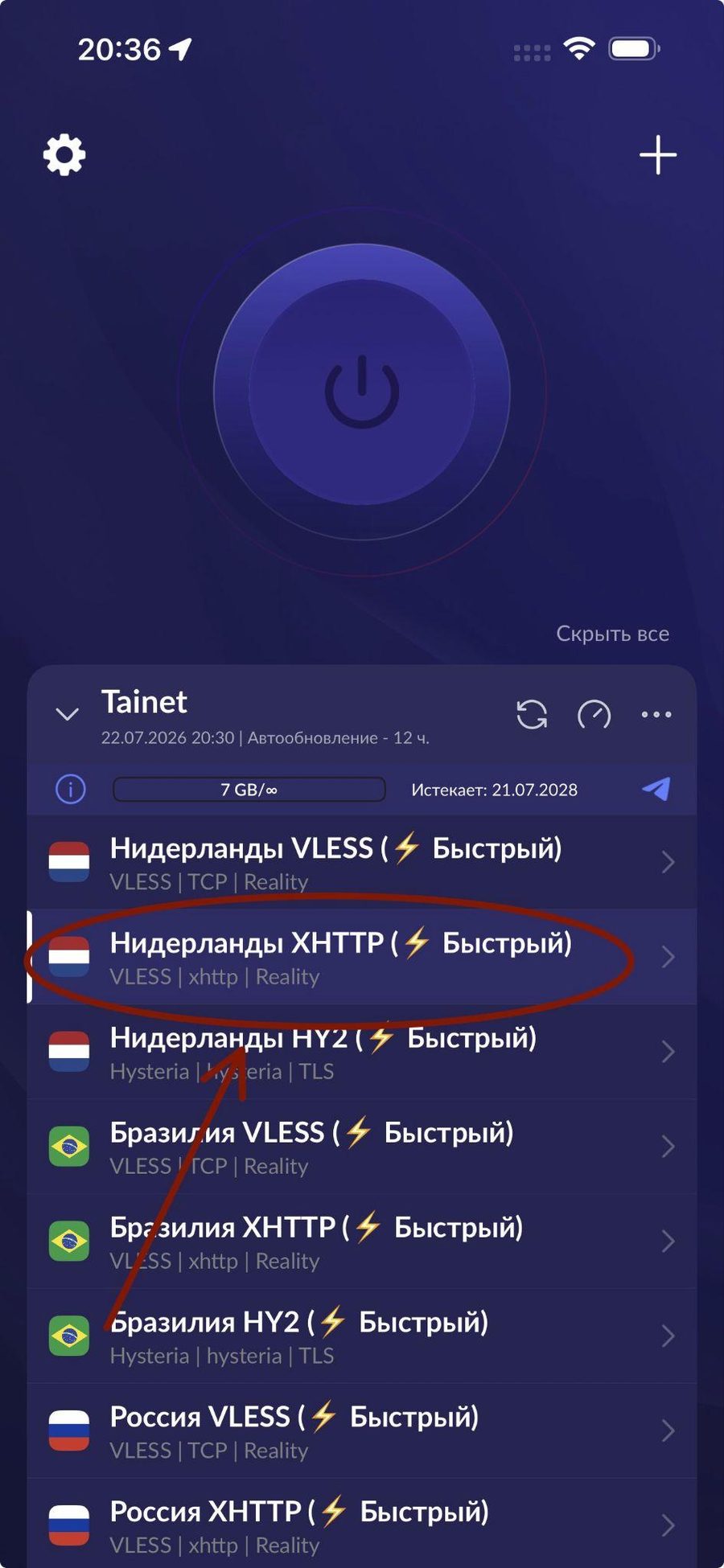
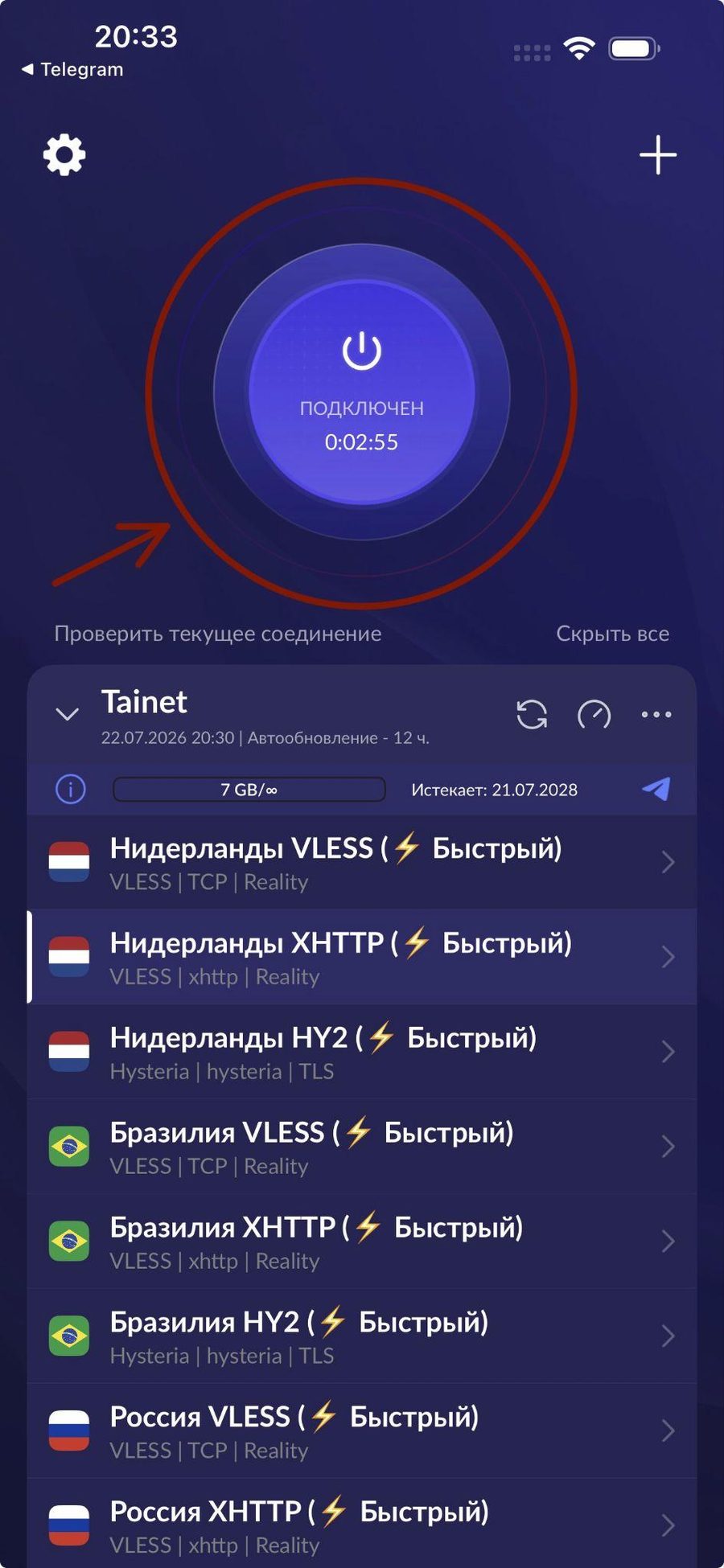
If the link won’t paste, check that it was copied in full: subscription links are long, and some messengers cut off the tail when you copy them.
How to set up Happ on Android
- Install “Happ Proxy Utility” from Google Play — or through the direct link in the setup guide in your account.
- Copy the subscription link from the bot or your account.
- In Happ tap ”+” → “Paste from clipboard” (or “QR code”, if scanning is easier).
- Pick a server and press the connect button. On first launch Android asks for permission to create a VPN connection — tap “OK”.
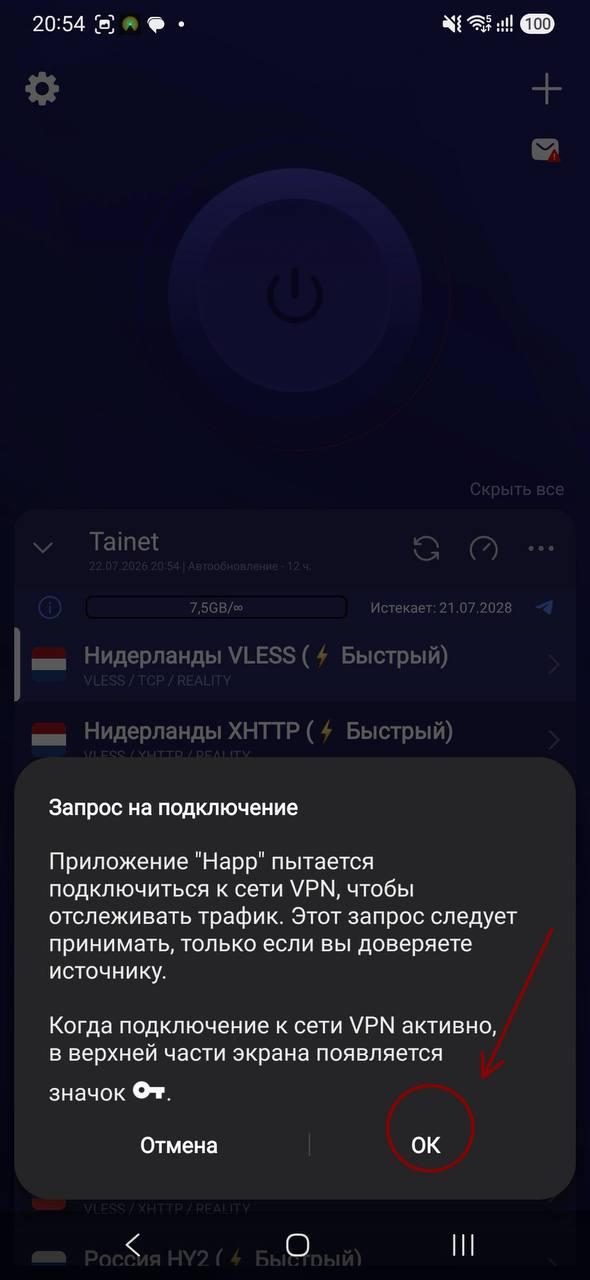
On Android TV the logic is the same, but adding the subscription by QR code is more convenient: open the QR on your phone and scan it from the TV screen. For televisions we have a separate guide to VPN on a Smart TV.
How to set up Happ on Windows and macOS (PC)
-
Download the build for your system from the official site, happ.info — or through the link in the setup guide in your account.
-
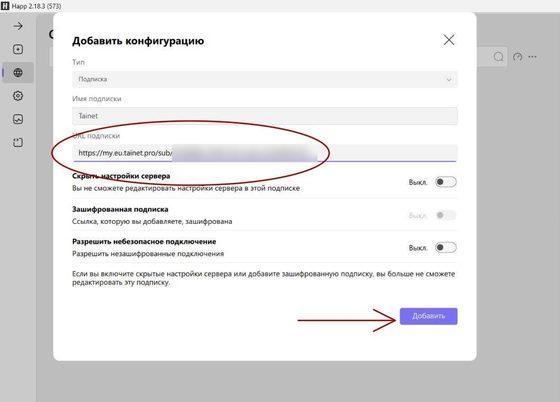
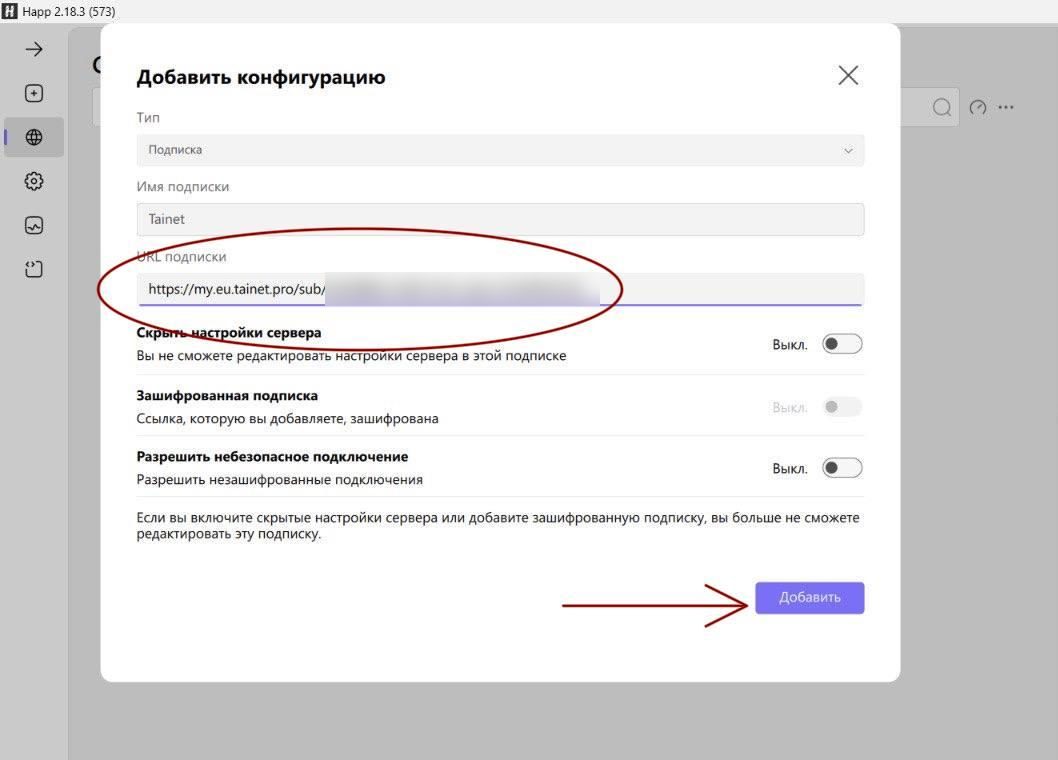
On first launch you’ll see the Insert screen — paste the subscription link there and press Get Started. If the app is already set up, a subscription is added with the ”+” button: type “Subscription”, the link in the “Subscription URL” field, then “Add”.
-
Pick a server from the list and turn the connection on.
One important detail on a computer: if you have proxy extensions in your browser, disable them in the browser settings — they intercept traffic and conflict with the client. Simply switching an extension off is sometimes not enough; removing it is more reliable. Which file to download for your computer, how TUN mode differs from proxy mode and what to do when the Happ service won’t start — in the separate guide to Happ on a computer.
Happ is not working: a breakdown by symptom
If Happ has stopped working or will not connect, do not rush to reinstall it: almost every case is sorted out in a couple of minutes by the symptom. First a quick table, then breakdowns of the errors the app names itself, and the Happ-specific details. If your error isn’t here, every Happ error broken down by symptom covers each message separately.
| What you see | Likely cause | What to do |
|---|---|---|
| It stopped working today, yesterday it was fine | Changes on the network, or the server is unreachable | Change the server; refresh the subscription with the button; check the live status summary of VPN failures - we note what we are seeing |
| The subscription will not add | Another VPN connection is on while you add it | Turn it off and add the subscription again - that is the most frequent cause |
| ”Could not connect to the server” | That particular server is down or unreachable from your network | Pick another server; if none are reachable, refresh the subscription |
| It added, but there is no connection | The link was imported incompletely | Delete the subscription and add it again, then try another server |
| It connects but the internet does not work | The subscription expired, or DNS | Check the subscription expiry in the bot or your account; refresh the subscription; change the server |
| No servers work: the list is empty or all red | The subscription did not load, or it is stale | The subscription refresh button; if that fails, delete it and add it again |
| An error with a name: TLS, Xray, geo files, 502 | Different causes, each with its own fix | Find your error in the breakdowns below |
| It fails on mobile data but works on Wi-Fi | The operator filters the classic protocols | Pick a server on VLESS or Hysteria2 - their traffic looks like ordinary HTTPS; a Tainet subscription has such servers out of the box |
| It disconnects on its own | The system kills the app in the background | The breakdown below |
| It crashes on launch | A damaged installation or an incompatibility | The breakdown below |
| Low speed | A distant server or a parallel client | A server with a lower ping; turn off other clients and extensions |
The TLS handshake error
Happ says “TLS error” or “handshake error” when it cannot establish a secure connection with the server. Three fixes in order: check the date and time on the device - a wrong clock is the most frequent cause, certificates fail validation, so set it to “automatic”; change the server, since the handshake can be cut on the route to one particular server; change the network as a test, mobile to Wi-Fi and back - if there is no error on the other network, your network is interfering with secure connections, so pick servers on VLESS with masking.
The “critical Xray core error” and the JSON parsing error
Xray is the “engine” inside Happ that actually creates the connection; a “core error” means the engine did not fire, and the subscription usually has nothing to do with it. The fix in order: update Happ to the latest version, because the configuration format changes over time and an old core may simply not understand a fresh subscription; turn off the Noise and Fragment padding options - both in the app settings and in the properties of the subscription itself, tap it and open the parameters: when enabled, they regularly produce this exact error; close the app completely and start it again; still crashing - delete the subscription and add it again, and if you had set up your own routes or a non-standard DNS, turn them off for now. The error marked EOF is from the same family: something broke off at the start, a connection or the reading of the configuration, so begin with a restart and re-create the subscription. If you have no time to dig into it, there is a fallback: setting up the INCY client takes a couple of minutes, it accepts the same subscription link and has no such settings.
By the way, “Happ is not working on PC” is most often this exact core error, and on Windows it has three causes of its own: an antivirus not letting the core through, Windows Defender included - add the Happ folder to its exceptions; missing Visual C++ 2015-2022 system libraries - install both architectures, x64 and x86, from the Microsoft site, which also cures “the app will not start” in general; and a conflict with the network adapters of other VPN programs - remove or disable the clients you do not use.
The geo file loading error
Geo files are service lists Happ uses to decide which traffic goes where. An error loading them interferes with routing, and if the configuration requires those lists it can stop the core from starting at all. The fix in order: close Happ completely and start it again - the app usually re-downloads the missing files at launch; if that fails, Happ’s advanced settings have a geo file cache reset, after which the files are downloaded fresh; update the app to the latest version; and if the files stubbornly will not download directly, connect to a server and try again through the tunnel.
”Error received from the server”, error 502 and the timeout
“Timeout exceeded” belongs here too: the server did not answer within the allotted time. All three say the same thing - the server the app is talking to either refused or did not answer at all. This is not your Happ breaking: change the server and carry on; if the error appears while refreshing the subscription, the source is temporarily unavailable, so try again in a few minutes. Errors on every server at once are rare; if that happens, take a fresh subscription link - in the Telegram bot or in your account - and add it again.
Happ is not working on a phone: three universal checks
Before diving into the specifics of each system, three checks fix most phone cases on any platform: flight mode for 10 seconds, which resets the network stack - reconnect after switching it back; another network, switch mobile to Wi-Fi and back: if it works on one of them the problem is the network, not Happ - see the mobile data row in the table; and fully closing the app, swipe it out of the running list rather than minimising it, then start it again. After that come the specifics: the Android causes in the next breakdown, the iPhone ones below in the App Store section.
Happ disconnects on its own
When Happ “is not working on Android on its own” - connected one moment, not the next - it is almost always not Happ but the system: the phone is saving battery and killing the app in the background. On Android: Settings → Apps → Happ → Battery → “Unrestricted”, and allow background work; on Samsung and Huawei, additionally take Happ out of the “sleeping apps” lists. The second cause is the connection breaking when the network changes, Wi-Fi to mobile: turn on auto-start and auto-connect in Happ’s settings - both are there as separate switches, and together they bring the connection back without you. The general breakdown of this symptom for any client is in the diagnosis of why a VPN disconnects on its own.
Happ crashes on launch
Televisions are a story of their own: on TV boxes Happ crashes most often because of low memory or an old version of Android - close the other apps and check for a Happ update in the box’s store. On a phone and a PC a crash on launch is cured by reinstalling the app: the subscription is not lost, it comes back from your link in the bot or your account in a minute.
The Happ details everyone looks for
You cannot see the ping. It is not switched on in the settings - it is measured right in the list: tap the lightning icon next to the subscription name; on Android you can long-press the subscription and choose “Check ping”. A couple of seconds later the latency in milliseconds appears next to every server: the lower, the better.
Which server to choose. Servers differ not only by country but by route type. Try a direct connection first - it is the fastest, and on home Wi-Fi it is usually enough. If it will not go, take a route through an intermediate server inside the country: slower, but it comes up where the direct one stays silent, and on mobile data it is more often the working one. If that is silent too, there is the fallback with a traffic limit: the slowest, but it gets through where nothing else does. Separately there are routes for video and gaming: latency matters there, not speed. In a Tainet subscription the type is visible from the icon at the start of the line: ⚡ direct, 🛡 through a server in Russia, 🎮 for video and gaming, ⚪ the limited fallback.
Nothing changed after switching servers. Telegram, YouTube and most apps remember the address they started on and hold it until a full restart. Close the app from the list of running ones - not minimise, close - and open it again.
Updating the app and refreshing the subscription are different buttons
A frequent confusion, and the reason advice to “just update” does not work. Updating the app means a new version of Happ itself, from the store or the official site; it cures crashes and core errors. Refreshing the subscription is the button inside Happ next to the subscription name: it reloads the server list from your link and cures empty lists, stale configurations and “it worked yesterday”.
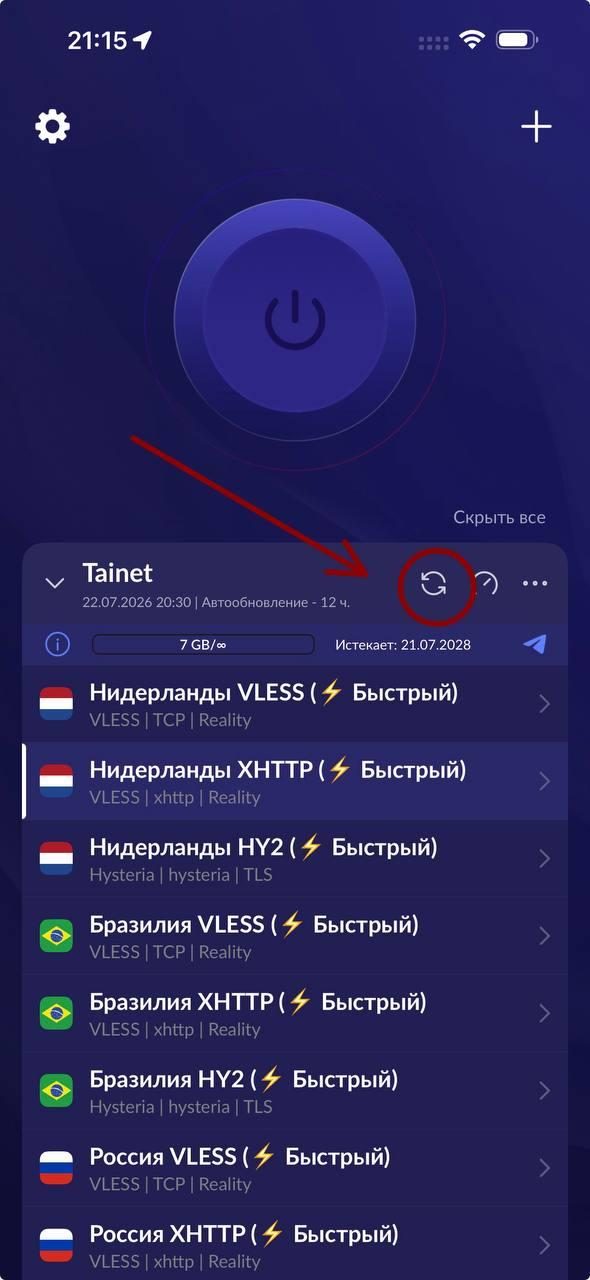
And so that you never have to remember it at all, Happ’s settings have automatic subscription updates, applied to all of them at once: turn it on and the lists stay fresh by themselves.
A vicious circle of its own: “how do I refresh the subscription if the internet is not working” - the subscription was in a messenger you cannot reach without a connection. The way out is simple: your subscription link is always available in your account on this site - the site opens in an ordinary browser, so copy the link there and add it through “Paste from clipboard”.
Not working on iPhone: is that really Happ, and how to install it now
The two most frequent questions of the iPhone branch - “Happ was removed from the App Store, what now?” and “how do I install Happ on an iPhone now?” - and as of 13 September 2026 the second one has good news: the Russian App Store again carries an official app of the family, Happ Lite by the same developer Flyfrog LLC. It installs the usual way, connects with the same subscription link, and every breakdown in this section applies to it.
The context that matters: the Happ family has been removed from the Russian store and returned several times, so the picture may change again. The rule that holds either way: the real Happ in any edition is published by Flyfrog LLC - check the publisher on the app’s page. A search for “happ” in the store also returns apps with similar names from other publishers - those are not Happ, and “I installed it and it does not work” often means exactly that. If Happ is already installed it keeps working, so look after it and do not delete it; and if the official app is not in your store at your moment, the fallback is described in the red box of the setup section above, and the step-by-step INCY setup is a separate article.
About Happ Plus and Happ Lite
Happ Plus and Happ Lite are editions of the app from the same developer, Flyfrog LLC: they connect and are fixed in exactly the same way, and every breakdown in this section applies to them unchanged. For clarity, the names the family has appeared under in the stores: “Happ - Proxy Utility” (the original), “Happ - Proxy Utility for TV” (for Apple TV), “Happ - Proxy Utility+” and “Happ Lite”. The word “Proxy” also turns up in the names of fakes, including ones with an “Official” prefix - the real Happ has no such prefix, so the only reliable marker is the publisher Flyfrog LLC on the app’s page. One thing not to confuse: the Happ app in any edition is free and on its own lets you nowhere - a service subscription is required. The “Happ Plus subscriptions” that turn up on third-party sites are not a product of Happ’s developer but ordinary access resellers using someone else’s name: pick a subscription by the service you trust, not by the name of the app.
Free keys and configs for Happ: why they stop working
A noticeable share of “Happ is not working” is dead free keys: one link from a chat is shared by hundreds of people, the server chokes, then the key is switched off - and Happ honestly shows that there is nowhere to connect. The app has nothing to do with it.
Your own subscription settles this for good: with Tainet it takes a minute in the Telegram bot or in your account, the first 7 days free, then from 8 roubles a day - and one subscription works across all your devices at once: phone, computer, tablet, TVs and set-top boxes, and through INCY even an Apple TV, plus a router to cover the whole house with one connection. A trial period with no card is exactly how you test a service before paying. And in every app of this class, not only in Happ.
How to connect each of them is covered step by step: installing a VPN on a TV or set-top box, setting up a VPN on routers of every brand, the roundup of VPN clients for computer and phone.
None of this helped? Write to us - through a ticket in your account or in the Telegram bot. Real people answer; attach a screenshot with the exact error text and the app version, which is at the bottom of Happ’s settings - the cause is found immediately from the literal wording. An honest caveat: we help with a Tainet subscription - other people’s subscriptions and keys we cannot fix from our side. The general diagnosis for any client and network is in why a VPN is not working.
How to get a subscription for Happ
The easiest way to get a subscription for Happ is from Tainet - 7 days free to try: the link arrives right after registration and goes into the app with a button. Happ itself is free - you pay only for the service subscription, which is what provides the servers. The same subscription works in INCY, v2RayTun and other clients, and the client can be changed at any time.
Happ alternatives: what to switch to
Happ is a shell, not the connection itself. The subscription lives separately from the app: it is a link that you copy. That is why moving to another client is not a re-signup but a minute of work: you copy the very same link and paste it into the new app. Nothing is lost, and there is nothing to buy again.
Hence a practical takeaway that saves time: you don’t have to pick a client for good. The app is a consumable, the subscription is the constant. Happ didn’t suit you — you change the app, not the service.
There are usually three reasons to switch clients: the app won’t install on your system, you don’t like the interface, or you need a feature Happ doesn’t have.
| App | Platforms | How it differs from Happ | When it makes sense |
|---|---|---|---|
| Hiddify | Windows, macOS, Linux, Android, iOS | The same set of protocols, more settings exposed, a denser interface | You want control over routing |
| INCY | Windows, iOS, Android, TV | Simpler than Happ, fewer screens, a faster first launch | A first connection with a minimum of questions |
| Streisand | iOS, macOS | A native Apple app, behaves neatly in the background | iPhone and Mac, if Happ feels uneven |
| v2rayNG | Android | An old workhorse client, technical interface | Android, where Happ won’t install |
| NekoBox | Android | Flexible routing, plenty of manual settings | You need rules like “this traffic here, that traffic there” |
| v2rayN / Nekoray | Windows | Desktop clients with detailed logs | Windows, when you need to see where it breaks |
| Shadowrocket | iOS | Paid, around $3 one-time | iOS, if you need advanced rules |
| sing-box | Windows, Linux, macOS | Command line, no graphical window | A server or a machine without a screen |
What happens to the subscription when you move
Nothing. The subscription link is not tied to an app: it describes a list of servers, not a program. You open the new client, paste the same link — and the connection shows up exactly where it was.
The one thing worth remembering: turn the old client off before starting the new one. Two clients running at once conflict, and that is the most common reason for “I moved and everything broke”.
Which VPN to choose for Happ: what to look at when picking a subscription
Here it is worth saying plainly, because it saves weeks of trial and error. Every client in the table is free, and there is practically no difference in speed between them. The app is a window: it draws the server list and a button. Speed, stability and how quickly the server list refreshes are set not by the window but by the subscription behind it.
So the question “which client is better” is settled in five minutes and costs exactly nothing. And the question “whose subscription” is the choice that actually changes something.
If you don’t have a subscription yet, you can get one in the Telegram bot or in your account on this site: the link is one and the same, and you pick the client for it yourself from the table above and change it whenever you like.
When switching clients is pointless
Before installing a new app, rule out the causes that have nothing to do with it — they are covered above, in the section on common problems. The test is simple: if the same link works in another client, Happ was the problem; if it works nowhere, the app has nothing to do with it, and swapping it is an evening wasted. In the second case, look at the subscription and at your network, not at the list of alternatives.
One more option is v2RayTun: the subscription is exactly the same, only the app itself looks different.
And separately: a subscription does not only go on a phone. On a router it works for every device in the house at once - TV, set-top box, laptop - and it is set up following the router guide.
Frequently asked questions
Where to get a configuration for Happ for free
A configuration for Happ can be had for free from Tainet - 7 days with no card: after you register, the subscription link goes into the app with a single “Add subscription” button - provided Happ is already installed. Looking for a “free Happ configuration” on third-party sites is not worth it: public configs are handed to thousands at once, they are overloaded and drop out quickly. You get a working link from us straight away and free to try. The same holds for INCY - one subscription, the client is your choice.
Is Happ free?
Yes, the app itself is free on every platform. You only pay for the subscription to the service you connect to: at Tainet the trial is free, then from $0.10 a day.
Where do I get the subscription link?
From your connection service. At Tainet it is available in two places, whichever suits you: in the Telegram bot and in your account on this site — the link is the same in both.
⚠️ The link is the same provided that signing in through the bot and signing in with e-mail are one account. If the subscription was paid in the bot but the dashboard does not show it (or the other way round), those are two separate accounts: open Profile → Settings and press “Link Telegram” (or “Link email” if you started from the bot — then confirm the address through the link in the letter). The accounts merge: the remaining days add up, keys and history are kept, one login remains. There is no need to pay twice. If it does not work, both accounts have a Telegram of their own, and only support can join them.
How many devices can use one subscription?
It depends on the service. At Tainet a single subscription works on several devices at once — phone, computer and TV are all covered by one link.
How is Happ different from Streisand and V2rayNG?
All three are clients for the same protocols. Happ wins on cross-platform consistency (the same interface on phone and desktop) and on how easily subscriptions are added. The same class of app is covered in the Hiddify walkthrough, which shows how to add a subscription to it on phone and desktop. A comparison of clients across all platforms is in a review of VPN clients.
Which protocol does Happ use?
Mainly VLESS, a modern protocol that disguises traffic as an ordinary HTTPS connection. For the details, see how VLESS masquerading works.
If this article describes your situation, Tainet handles it without the technical hassle: connect through the Telegram bot or in your account, from $0.10 a day (free trial included). Questions go to support - we answer fast.